How-To: Proposal Editor & Content Library
How the Proposal Editor is Structured
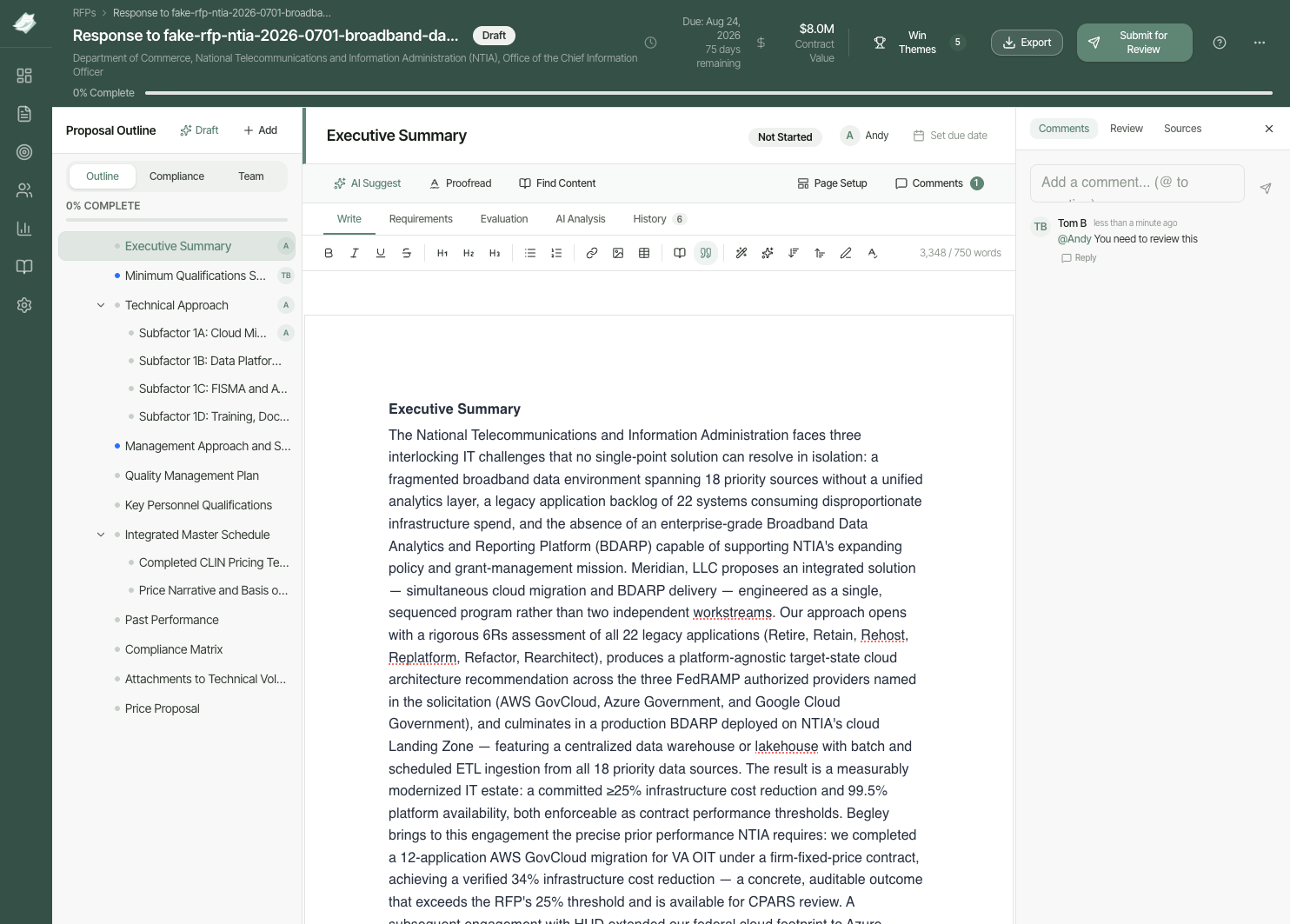
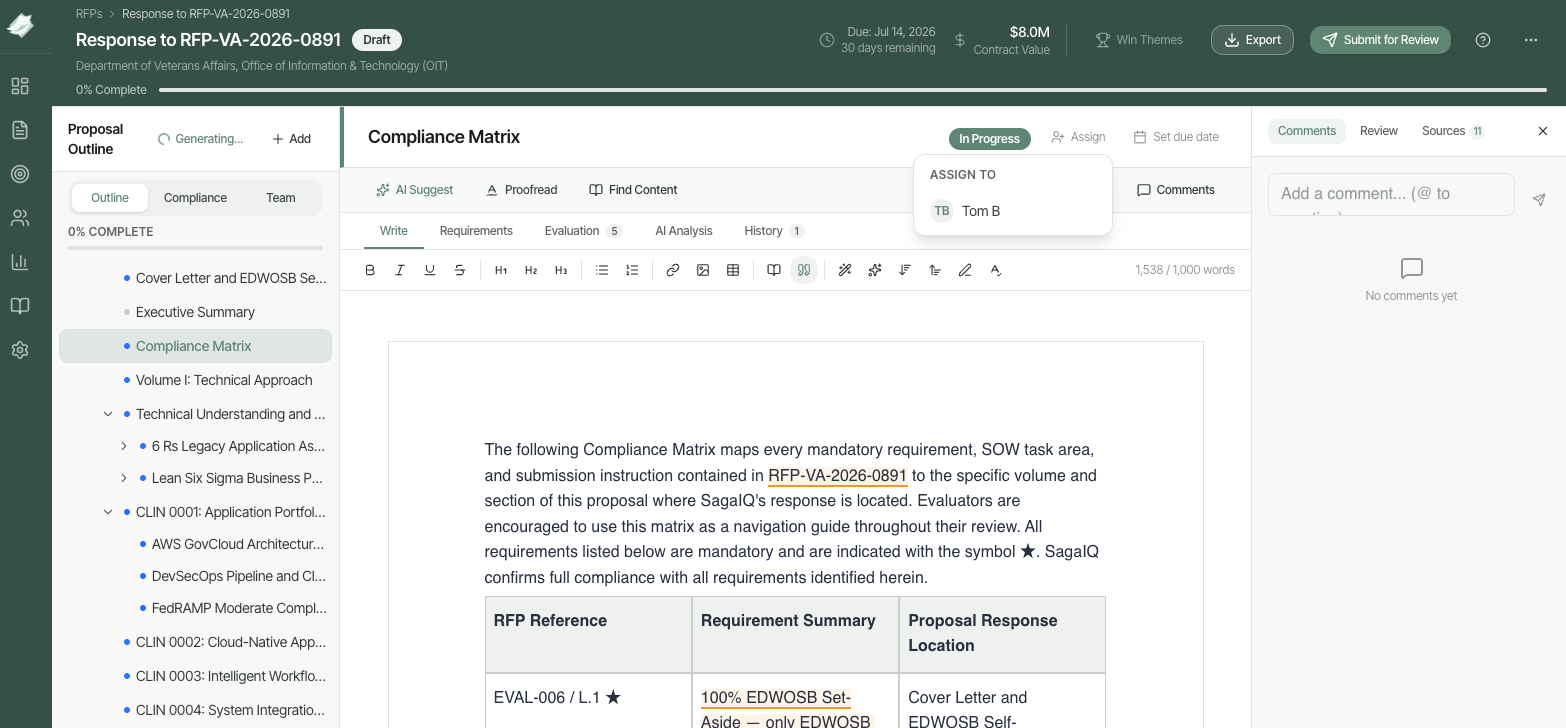
The proposal editor opens when you click Create Proposal from an RFP results page, or from Proposals in the main navigation. It has three panels:
| Panel | What it does |
|---|---|
| Left — Outline | Lists all proposal sections. Click any section to navigate to it. Tabs switch between Outline, Compliance, and Team views. |
| Center — Editor | Where you write and edit. The action bar includes AI Suggest, Proofread, and Find Content (act on the whole open section); tabs switch between Write, Requirements, Evaluation, AI Analysis, and History; and the formatting toolbar provides text formatting and AI writing tools. |
| Right — Context | Tabs for Comments (add comments and @mention teammates) and Reviews (what reviews have been done) and Sources (where the content came from) |
ExcelaDoc auto-generates a section structure from the RFP. You can add, rename, or remove sections as needed.
The Editor Toolbar
The toolbar above the editor combines standard formatting tools with AI writing tools, scoped to the section you currently have open. Each tool applies to your text selection, the current paragraph, your cursor position, or the whole open section, as noted below.

The # column below numbers each button left to right in the toolbar (the small vertical dividers mark the start of a new group) so you can match a button in the screenshot to its row in the tables.
| # | Tool | Applies to | What it does |
|---|---|---|---|
| 1–4 | Bold, Italic, Underline, Strikethrough | Selected text | Standard text formatting |
| 5–7 | H1, H2, H3 | Current paragraph | Sets the heading level |
| 8–9 | Bulleted / Numbered list | Current paragraph | Converts the paragraph to a list item |
| 10 | Link | Selected text | Adds a hyperlink |
| 11–12 | Image / Table | Cursor position | Inserts an image or table |
| 13 | Insert from Library | Cursor position | Opens your Content Library so you can insert an existing item |
| 14 | Toggle Source Citations | Open section | Shows or hides citation highlights for library content used in this section |
AI Writing Tools
These tools apply to the section you currently have open. They continue the numbering from the toolbar above (buttons 15–20) and only appear if your workspace has AI features enabled.
| # | Tool | Applies to | What it does |
|---|---|---|---|
| 15 | AI Write | Cursor position | Opens a dialog to generate new content for this section using your Content Library, then inserts it where your cursor is |
| 16 | AI Improve | Selected text | Rewrites the selected text for clarity and quality. If nothing is selected, ExcelaDoc rephrases the surrounding text instead |
| 17 | AI Shorten | Selected text (required) | Condenses the selected text |
| 18 | AI Lengthen | Selected text (required) | Expands the selected text with more detail |
| 19 | AI Rephrase | Selected text (required) | Rewrites the selected text with different wording |
| 20 | Fix Spelling and Grammar | Selected text, or the whole open section if nothing is selected | Corrects spelling and grammar errors |
The Action Bar
Above the formatting toolbar, the action bar provides tools that work on the whole open section rather than a text selection:
| Tool | Applies to | What it does |
|---|---|---|
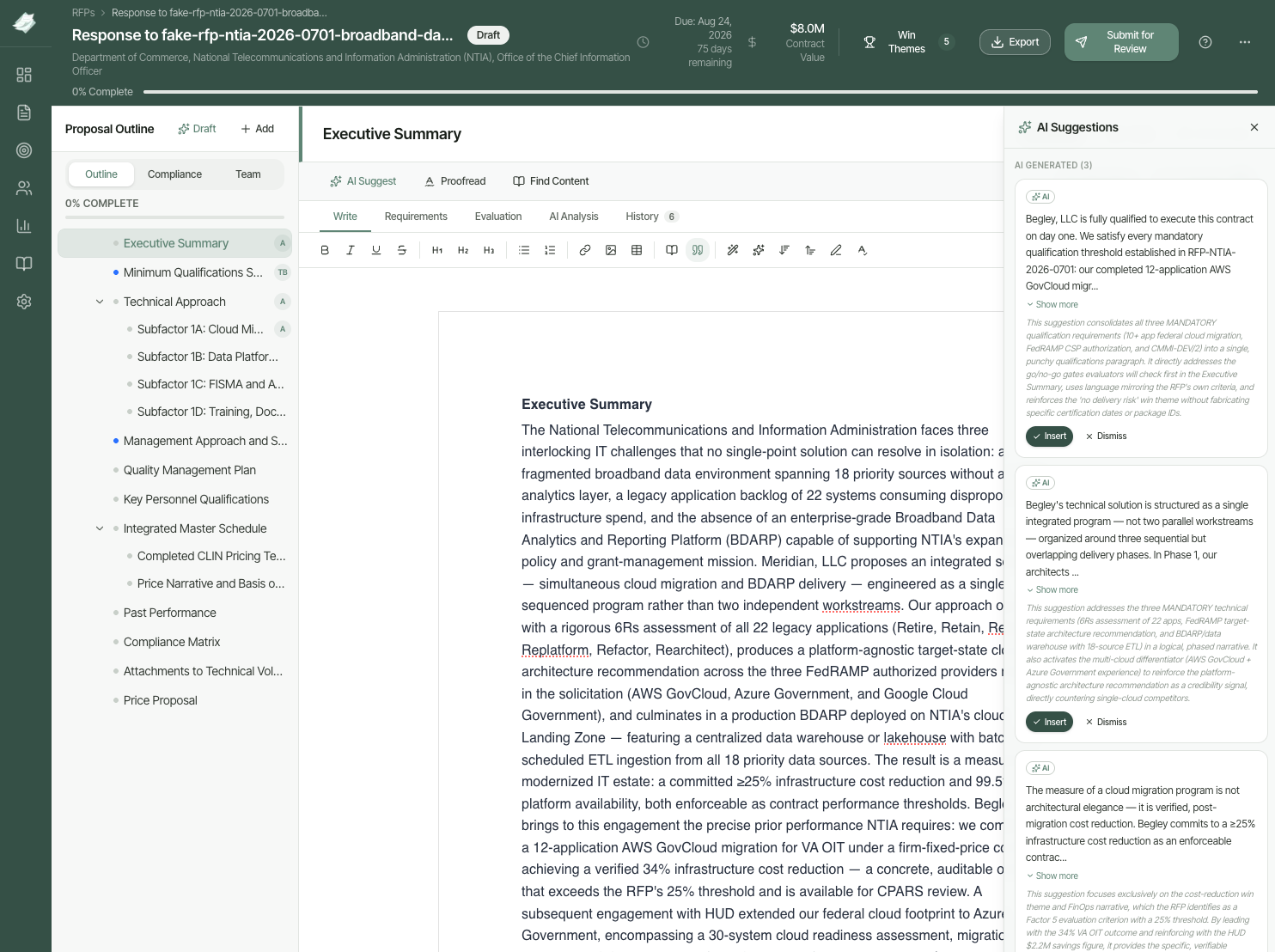
| AI Suggest | Open section | Opens the AI Suggestions panel and generates a draft for this section using your Content Library — see How to Generate AI Drafts below |
| Proofread | Open section | Scans the section for spelling, grammar, and style issues and underlines them inline. Click an underlined issue to accept, ignore, or ignore all instances |
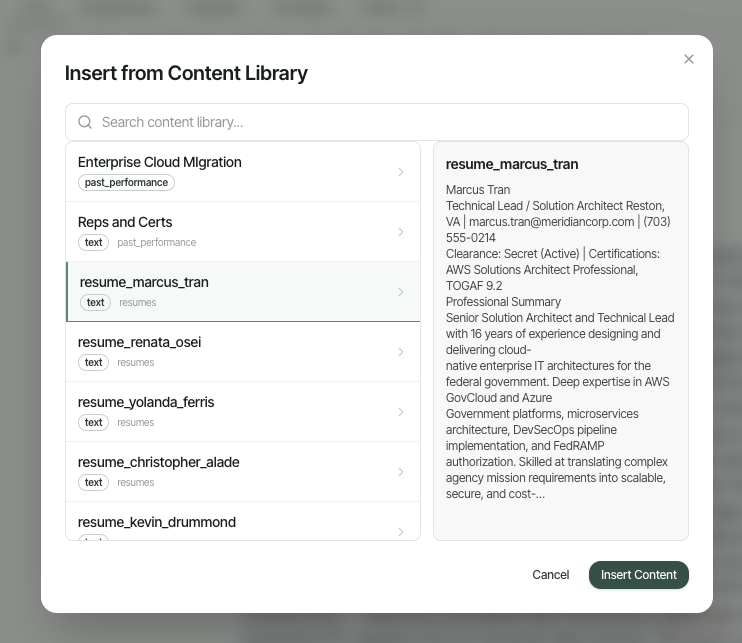
| Find Content | Cursor position | Opens the Insert from Content Library dialog to insert an existing item at your cursor — see How to Insert Content from the Library below |
How to Generate AI Drafts
ExcelaDoc can draft proposal content for you using your Content Library, either for the whole proposal at once or one section at a time.
Generate a first draft for the whole proposal
- Open the proposal in the editor.
- Click the menu (⋮) in the top header and select Generate First Draft.
- In the panel that opens, choose which sections to include and configure your generation settings, then click Generate Draft.
- ExcelaDoc pulls relevant content from your library and populates the selected sections.
- Review and edit each section as needed — all generated content is fully editable.
Generate content for a single section
- Click the section in the Outline panel.
- In the action bar above the editor, click AI Suggest.
- Click Generate Suggestions. ExcelaDoc drafts content using your library.
- Accept, edit, or discard the suggestion.
How to Insert Content from the Library
To add an existing library item to a section as-is — without AI rewriting it — insert it directly from the Content Library.
- Click the section in the Outline panel and place your cursor where you want the content.
- Click Find Content in the action bar, or the Insert from Library icon in the formatting toolbar.
- Search for the item you want in the Insert from Content Library dialog.
- Select it and click Insert. Its content is added at your cursor.
To add new items to your library, edit existing ones, or import content from a past proposal, see How-To: Content Library.
How to Collaborate with Teammates
Multiple users in your organization can work on the same proposal simultaneously.
Add Someone to the Proposal Team
Only people who have been added to a proposal's team can be assigned to its sections. Add teammates to the proposal team once, and they'll be available in the Assign list for every section.
- Go to Proposals in the main navigation.
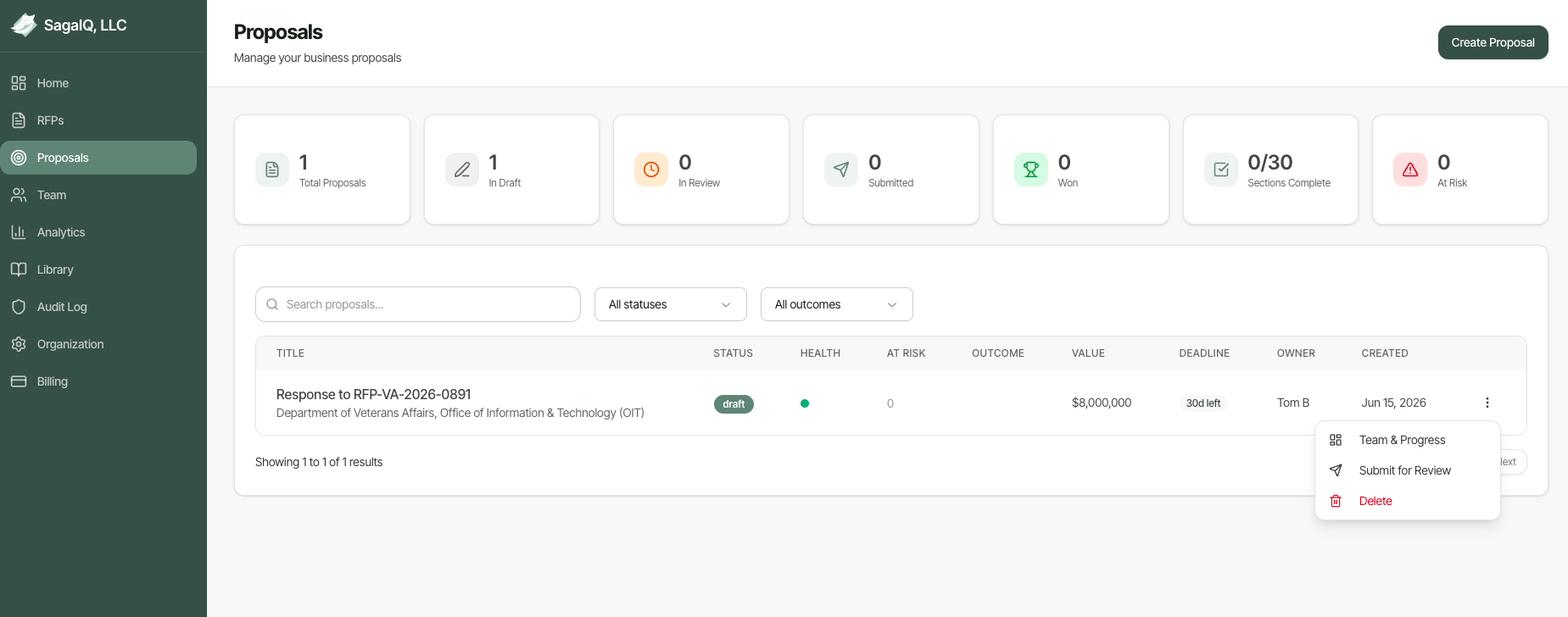
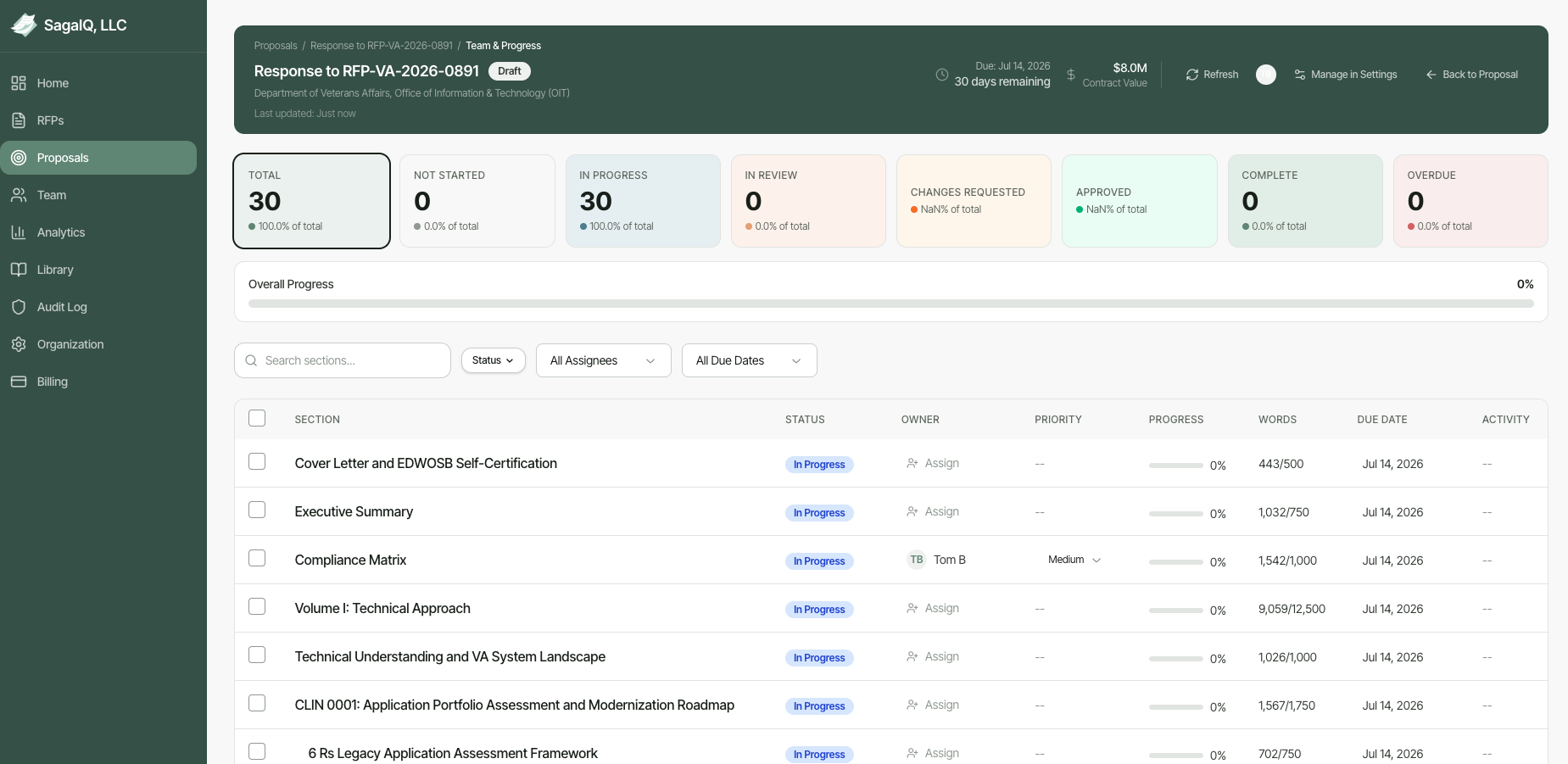
- Click the ⋮ menu on the right side of the proposal's row and select Team & Progress.
- On the Team & Progress page, click Manage in Settings in the top right.
- In the Proposal Settings dialog, open the Team tab.
- Under Add Team Member, select a teammate and a role (Owner or Contributor), then click the + button.
- Click Save Changes.

Assigning a section
- In the left Outline panel, click the section name.
- Click the Assign button in the upper right.
- Select a teammate from your organization. They receive an in-app and email notification.
Commenting
- In the right Context panel, click the Comments tab.
- Type your comment. Type @ to mention a teammate by name.
- Click Send (arrow icon).
- Teammates can reply inline. Click Resolve to mark a comment as addressed.
How to Export Your Draft
- Click Export in the top right of the editor.
- Choose your format: Word (.docx) or PDF.
- The file downloads to your computer.

Proposal Settings
Each proposal has its own settings, separate from your organization profile. To open them, go to Proposals, click the ⋮ menu next to a proposal, select Team & Progress, then click Manage in Settings. The Proposal Settings dialog has seven tabs.
General
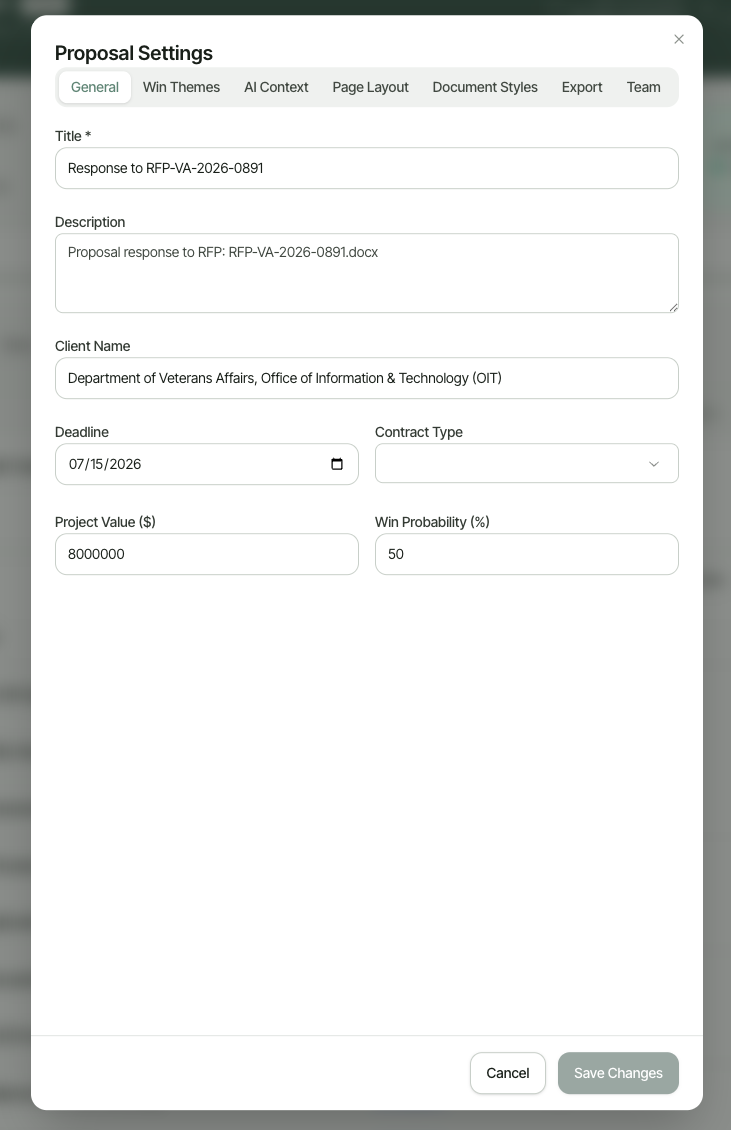
Core details for this proposal: Title, Description, Client Name, Deadline, Contract Type, Project Value, and Win Probability. These details populate the cover page on export and appear throughout Analytics.
Win Themes
Win themes are the key messages that explain why your organization is the best choice for this opportunity. Add 3-5 win themes here, and ExcelaDoc weaves them into AI-generated content throughout this proposal.

AI Context
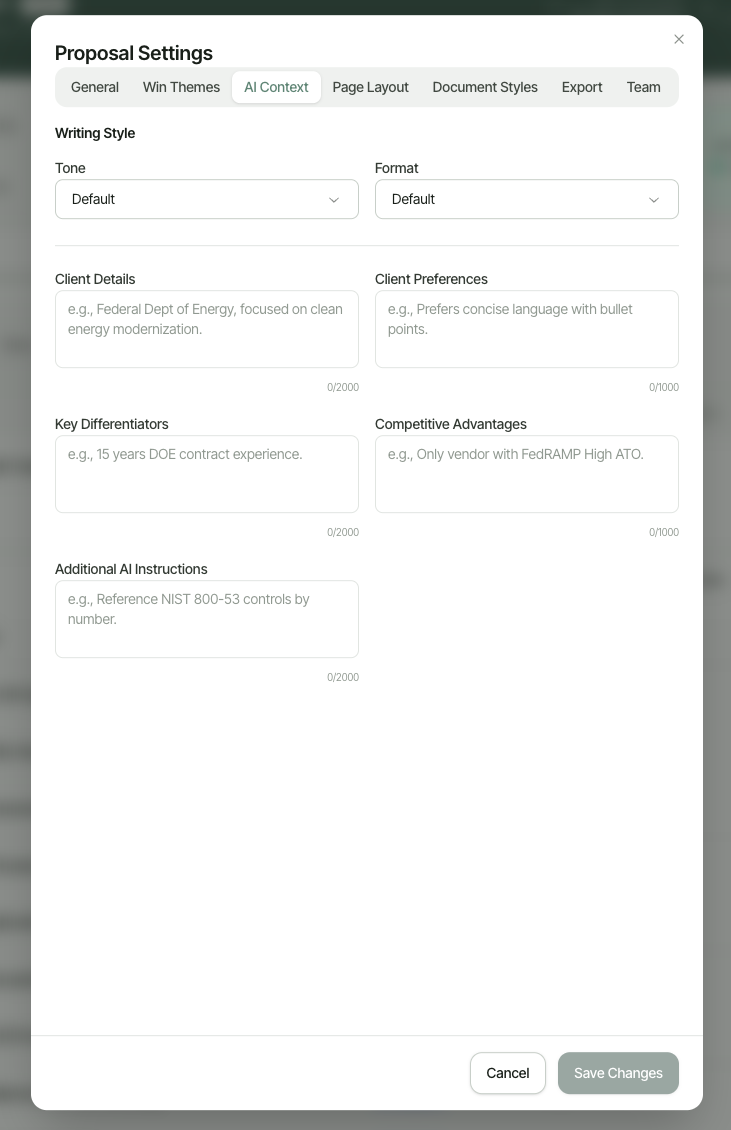
Proposal-specific writing guidance that supplements your organization's AI Writing Preferences:
| Field | What it's for |
|---|---|
| Tone / Format | Override your organization's default tone and format for this proposal only. |
| Client Details | Background on the client and their priorities for this opportunity. |
| Client Preferences | Stylistic preferences for this client, such as preferred terminology or formatting. |
| Key Differentiators | What sets your proposal apart for this specific opportunity. |
| Competitive Advantages | Advantages over the competitors likely bidding this opportunity. |
| Additional AI Instructions | Any other guidance you want the AI to follow when drafting this proposal. |
Page Layout
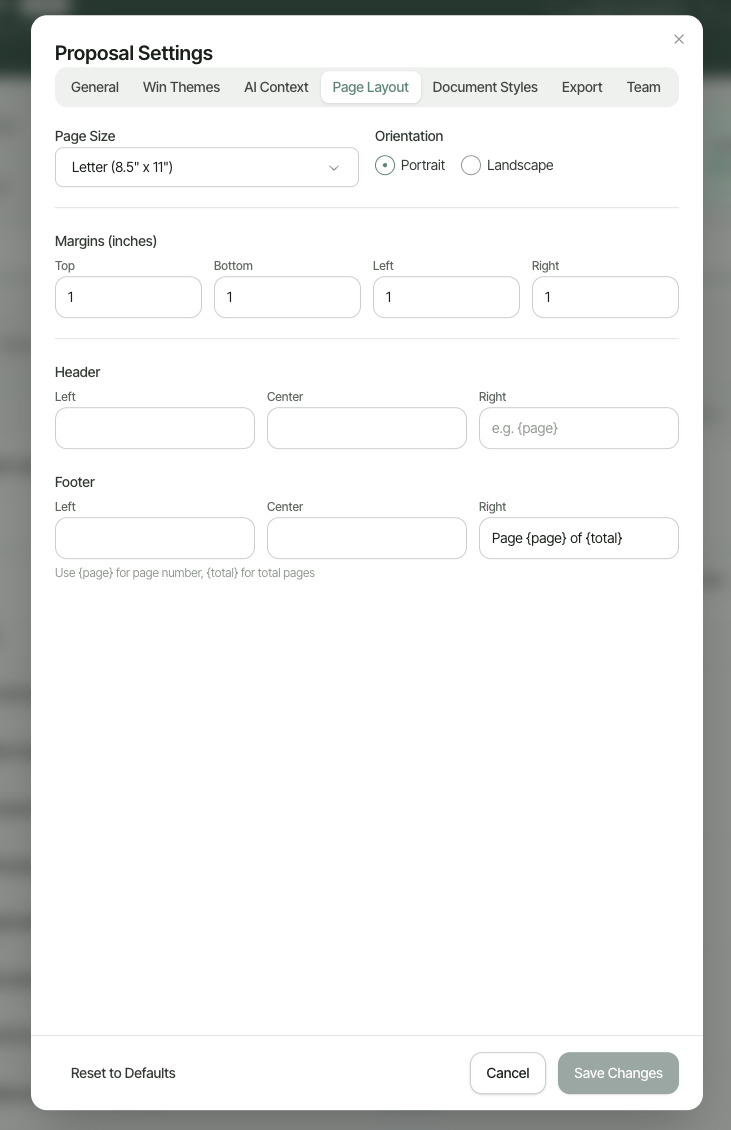
Controls the physical layout of the exported document: Page Size, Orientation (Portrait or Landscape), Margins (top, bottom, left, and right), and Header and Footer text for the left, center, and right positions. Use {page} and {total} placeholders in headers or footers to insert page numbers, e.g. "Page {page} of {total}".
Document Styles
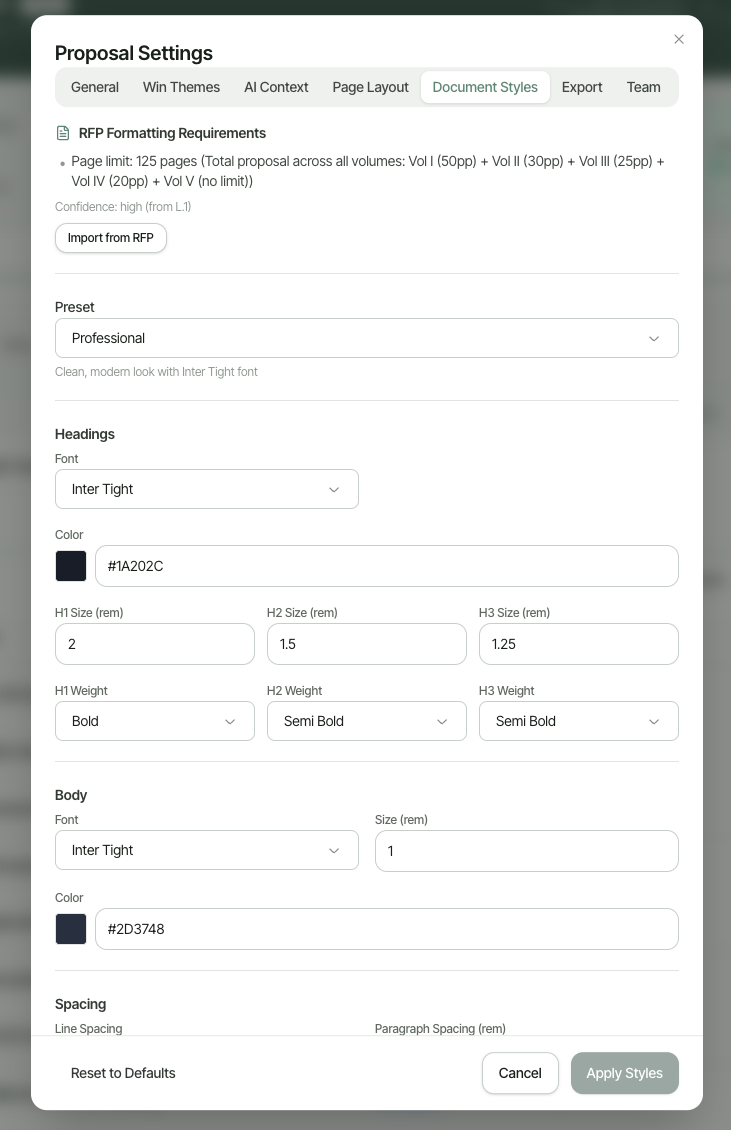
Controls the visual styling of the exported document.
- If the solicitation specifies formatting requirements, ExcelaDoc displays them at the top of this tab. Click Import from RFP to apply them automatically.
- Choose a Preset to quickly apply a coordinated set of styles.
- Customize Headings (font, color, and size for each heading level) and Body text (font, size, and color) individually.
- Adjust Spacing for lines and paragraphs.
Click Apply Styles to save your changes, or Reset to Defaults to discard them.
Export
Configures how this proposal is exported to Word and PDF:
| Setting | What it does |
|---|---|
| Cover Page | Includes a title page with the proposal name, client, and date. |
| Table of Contents | Automatically generates a table of contents from section headings. |
| Watermark Text | Optional text, such as "DRAFT" or "CONFIDENTIAL", shown diagonally across each page. Leave blank for no watermark. |
| PDF/A Compliance | Embeds PDF/A conformance metadata in exported PDFs. |

Team
Add and manage who can work on this proposal, and assign a role to each person. See Add Someone to the Proposal Team above for the steps.
Auto-Save and Returning to a Draft
ExcelaDoc saves your work automatically. If you close the browser or step away, your draft is preserved exactly as you left it.
To return to a draft, go to Proposals in the main navigation, find your proposal in the list, and click its title to reopen the editor. Drafts are never deleted automatically.